Turn One Marble Video Into a 30-Day Posting Plan
By Cihad Turhan · · 5 min read
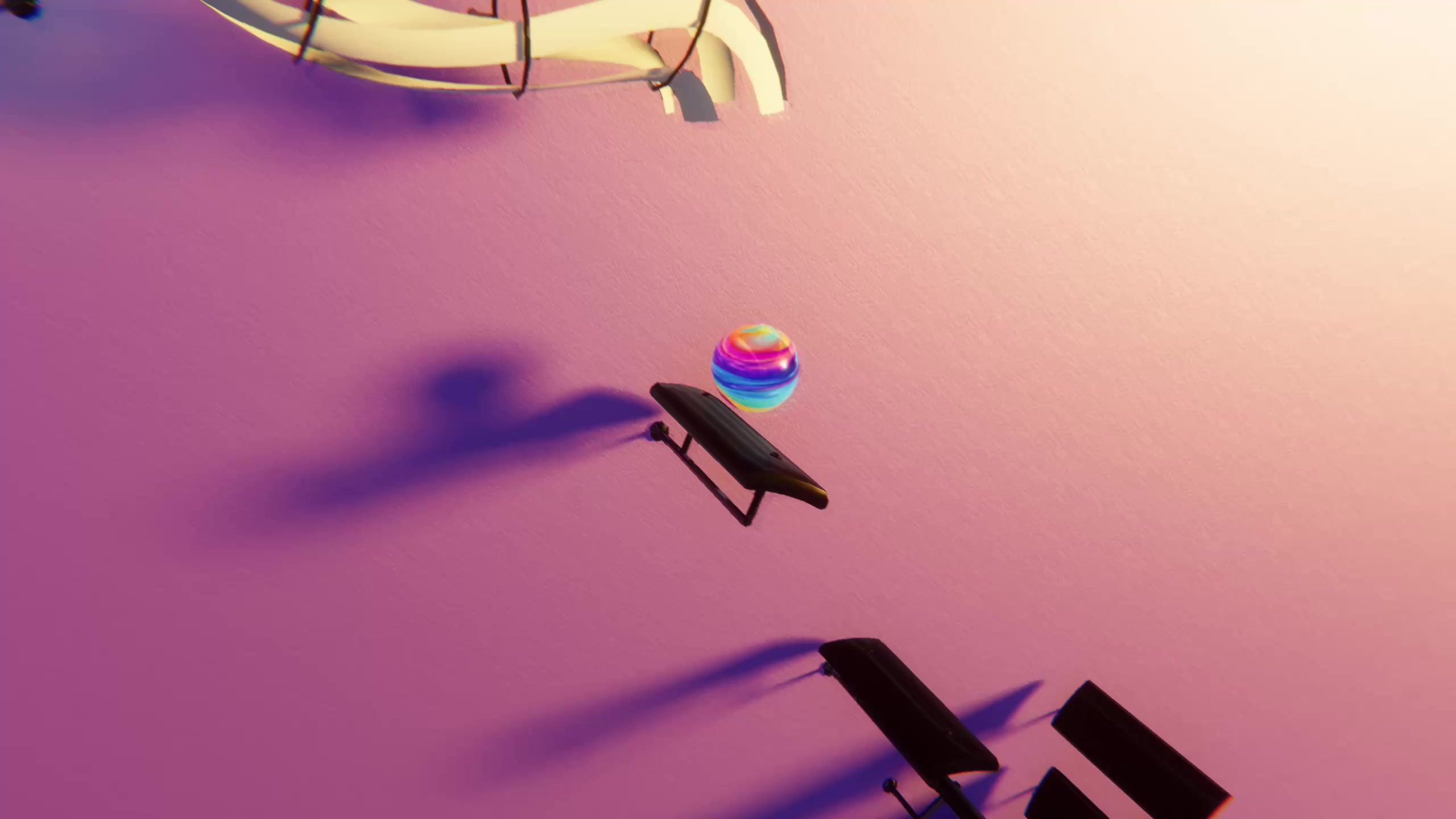
To turn one marble video into a 30-day posting plan, split your month into four repeating series, such as Classical Monday, guess-the-song, comment requests and theme swaps, and render each week's clips in one session. Your first video becomes the template: same song source, same setup, new piece or new look each time.
Most creators stall because every post starts from zero. A series removes that decision. Viewers also learn what to expect from your account, which gives them a reason to follow rather than just watch once.
The four series
| Series | Day | What it is | Example |
|---|---|---|---|
| Classical Monday | Monday | One well-known public-domain piece, played straight | Swan Lake |
| Guess the song | Wednesday | Cut before the title is obvious, reveal it in a pinned comment | Turkish March |
| Request from the comments | Friday | Make a piece a viewer asked for | The Entertainer |
| Theme swap | Sunday | The week's best song again, with a different visual theme | Monday's piece in a new look |
Four posts a week is a starting point, not a rule. If that's too much, drop Wednesday and keep the other three. What matters is that each series shows up on the same day.
A 30-day calendar
| Week | Monday | Wednesday | Friday | Sunday |
|---|---|---|---|---|
| 1 | Swan Lake | Turkish March | Ask for requests in a caption | Swan Lake, new theme |
| 2 | Gymnopédie No. 1 | Ode to Joy | First request | Best of week 2, new theme |
| 3 | The Entertainer | Hall of the Mountain King | Second request | Best of week 3, new theme |
| 4 | Für Elise | Canon in D | Third request | Same song three ways (see below) |
| Days 29–30 | Month recap: your top clip as a video reply |
All the pieces above are public-domain compositions, and the free MIDI files page has a file for each. A public-domain piece doesn't make every MIDI arrangement free to use, so check the license of the file you pick.
The Friday request slot needs one rule: only take requests you can make safely. If someone asks for a modern pop or film song, a cover of it carries copyright risk on every platform, so reply with a public-domain piece in a similar mood instead.
Batch-produce each week in one session
Making one clip a day means opening the app, finding a song and setting up every single time. Doing each step for the whole week at once saves most of that, and one focused session of about two hours covers four posts.
- Pick the week's four files. Download them from the free MIDI page in one go, and check the license of each file.
- Prepare the MIDIs. If a file is long or busy, trim it to the section you want and remove tracks that clutter the picture, saving a copy. Name files by day, for example
wk2-mon-gymnopedie.mid. - Import them one after another. In Marble Music (formerly Beat Bounce), import each MIDI in the level editor, edit the level, and play it once to check the feel.
- Render all four. Render in up to 4K, then render the theme-swap version of Monday's song while the level is still fresh. Watch each render once on your phone before moving on.
- Write captions in one sitting. One line per clip, plus the series name, such as "Classical Monday: Satie, Gymnopédie No. 1." Proofread composer names.
Leave one open slot each week for something timely, such as a reply to a popular comment. If you're new to the make-and-post flow itself, the step-by-step tutorial covers it.
Reuse your best performer
At the end of each week, look at which clip got the most comments, not just views. Comments tell you what people want more of. Then reuse it in one of three ways:
- As a theme swap. That's what the Sunday slot is for.
- As a video reply. TikTok lets you reply to a comment with a video (TikTok Support: managing comments). Answer "what song is this?" or "can you do it faster?" with a new render of the same piece.
- As a longer version. If a 20-second clip did well, post the full piece as a longer video for viewers who want to keep watching.
Don't upload the identical file again. A new section of the song, a new theme or a new hook gives returning viewers something new.
Week 4: the same song three ways
The week 4 finale shows one piece in three different formats. Render it as a marble clip in Marble Music, then build it in RingLoop, our sister rhythm game, where the MIDI imports with one ring per track and each cleared ring adds its instrument until the whole song plays. Its portrait render fits the same feed. For a third version, Note Bounce lands the balls on real sheet music, which works well for piano-learner audiences.
Canon in D suits this finale because it's already a set of layers over a repeating bass line, so each format shows a different side of it.
Start your first week
- Pick your four series days and write them in your bio or pinned post.
- Download week 1's files from the MIDI page.
- Batch-render on one day, schedule or post on the planned days, and note which clip draws the most comments.
Frequently asked questions
- How often should I post on TikTok?
- There's no single right number. Pick a schedule you can keep for a full month, because posting steadily matters more than posting a lot for one week and then stopping.
- Can I repost the same video?
- You can reuse a clip, but give it a new reason to exist: a new hook, a different section of the song, a new theme or a video reply to a comment. Posting the exact same file again adds little for viewers who already saw it.
- Will batch-made videos feel less fresh?
- Not if you leave room for timely posts. Batch the series clips, and keep a slot free each week for replies to comments and seasonal pieces.