Link a Music Short to the Full Video: A YouTube Pairing Plan
By Cihad Turhan · · 6 min read
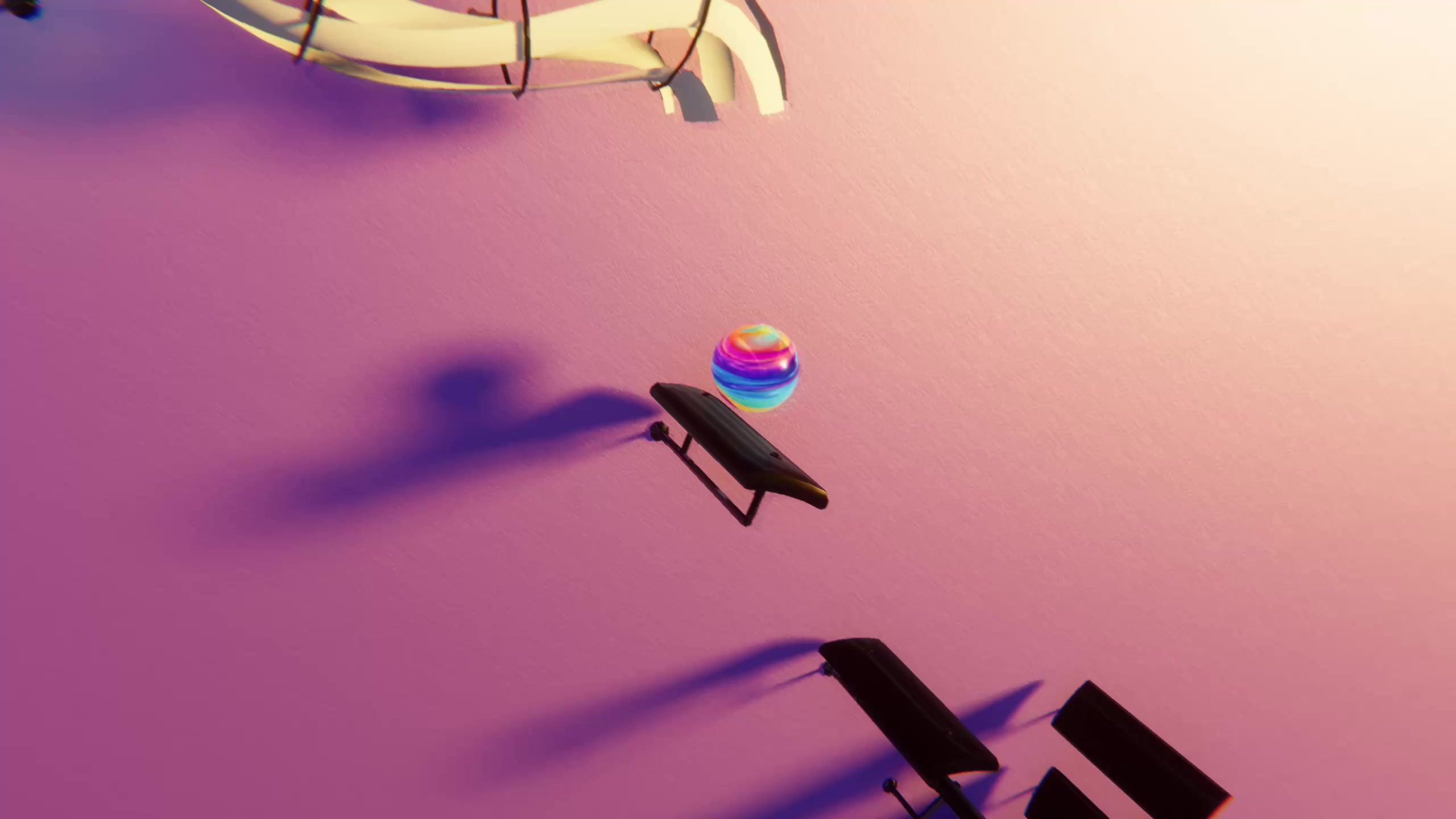
To link a music Short to its full video, upload the complete piece as a regular YouTube video first, then post a short clip of its best moment as a Short and attach the full video with YouTube's Related Video link. A viewer who enjoys 20 seconds of Canon in D is then one tap away from the whole piece.
This pairing suits bouncing-marble videos especially well, because the format works at both lengths: a few seconds of bounces makes a strong Short, and the full piece makes a calm video people leave playing. Below is the setup, two ways to cut the Shorts, and a weekly rhythm you can keep.
Why pair Shorts with full videos
Shorts and long videos serve different viewers. Someone scrolling the Shorts feed wants a quick hit. Someone who searches "relaxing classical piano" wants something to leave running. A music channel that does only one of those leaves the other audience on the table.
YouTube gives you a direct bridge between the two. According to YouTube Help: Add a related video to your Shorts, you can attach one of your videos, Shorts or live streams to a Short, and viewers see a clickable link to it in the Shorts player. The Short is the trailer; the related video is the feature.
Step 1: Choose a piece and its best moments
Not every piece suits both formats. Look for a public-domain piece with a recognizable opening that works as a 15 to 30 second clip, and a full length that stays watchable, ideally a few minutes with a clear arc rather than ten minutes of the same pattern.
Good candidates from /midis: Canon in D, which builds steadily, Satie's Gymnopédie No. 1 for calm viewers, and Grieg's In the Hall of the Mountain King, which speeds up all the way to the end. The compositions are public domain; check the license of any MIDI you didn't make yourself.
One full piece usually holds two or three Short-sized moments. Mark them before you render anything:
| Type of moment | Example | Caption idea |
|---|---|---|
| The famous opening | The first bars of Canon in D | "Canon in D in 20 seconds. Full version linked." |
| A big change | The switch to major in Mozart's Turkish March | "Wait for the switch." |
| A speed-up | The final minute of In the Hall of the Mountain King | "It keeps getting faster." |
| A calm passage | The opening of Gymnopédie No. 1 | "Save this for a study break." |
If the full video already has views, its retention graph in YouTube Studio shows which moments viewers rewatched. Those are your best candidates.
Step 2: Render the full piece, then cut the Shorts
Import the MIDI into the level editor in Marble Music (formerly Beat Bounce), edit the level if any notes need tidying, pick a visual theme, and render the complete piece in up to 4K as one uncut run. This is the version people will leave playing, so resist adding effects or text.
For the Shorts, you have two options:
- Re-render the moment. Trim the MIDI (or the level) down to the section you marked, keep the same visual theme, and render it as a vertical clip for Shorts. This gives the cleanest result, because the clip is made for a phone screen rather than cropped from a wide video. Start the clip on a moving frame, so the first second already shows bounces.
- Use Edit into a Short. According to YouTube Help: Create YouTube Shorts from your videos, you can open the watch page of a public long video you uploaded, tap Remix, then Edit into a Short, and select up to 60 seconds. Shorts made this way link back to the original video. It's the fastest route when you want several Shorts in one sitting.
Either way, keep the visual theme the same as the full video. When a viewer taps through from the Short, the full video should look like the continuation of what they just saw.
Step 3: Upload the full video first
The Related Video link points to something that already exists, so publish the long version first.
- Title for search: say what it is. "Canon in D, full piece, relaxing piano with a bouncing marble" beats a clever title nobody searches for.
- Description: credit the composer, note the source and license of the MIDI, and add one line about how it was made.
- Chapters (optional): for longer pieces with clear sections, timestamps help viewers jump to the part they know.
Step 4: Upload the Short and link it
- Upload the clip as a Short. YouTube Help says square or vertical videos up to three minutes are categorized as Shorts (Understand three-minute YouTube Shorts), but a short, punchy clip usually makes a better teaser.
- Give it a title that points forward, such as "Canon in D in 20 seconds. Full version linked."
- In YouTube Studio, go to Content, select the Short, choose a Related Video from your channel, and save, following the steps on YouTube's related video help page.
- Watch the Short on your phone and tap the link once to confirm it opens the right video.
A rights note for longer Shorts
The three-minute Shorts help page warns that Shorts longer than one minute with an active Content ID claim are blocked, and Edit into a Short doesn't work on videos with third-party claims at all. A marble video you render yourself from a public-domain composition avoids most of that risk, because there's no commercial recording in it. Covers of copyrighted songs are a different story, so stick to public-domain pieces for this plan.
A weekly rhythm you can keep
| Day | Upload | Link |
|---|---|---|
| Monday | Full video of piece A | None |
| Tuesday | Short of piece A's opening | Related Video to Monday's upload |
| Thursday | Short of piece A's big change or speed-up | Same full video |
| Saturday | Short of next week's piece B, as a teaser | Piece A's full video until B is up |
One full video can support two or three Shorts, so your rendering work stays low while the long video gets several doors in. For the basic make-and-post flow, see the bouncing ball video tutorial.
If comments on your Shorts ask how to play the piece, you've found a second audience. Note Bounce imports the same MIDI and drops bouncing balls onto real sheet music, then renders the gameplay as a video. A Short of the melody on the staff, linked to your full marble version, gives learners a reason to watch both.
Set up your first pair
Pick one piece today. Render the full version, upload it, then post a 20-second Short of its opening with the Related Video link. After a week, check which Short sent the most viewers to the full video, and cut your next one from that same kind of moment.
Frequently asked questions
- Can I link a YouTube Short to a longer video?
- Yes. After uploading the Short, open it in YouTube Studio's Content page and choose a Related Video from your channel. Viewers then see a clickable link to it in the Shorts player.
- How long can a YouTube Short be?
- YouTube Help says square or vertical videos up to three minutes uploaded since October 15, 2024 are categorized as Shorts.
- Can I cut a Short straight from my long video?
- Yes, if the long video is public and you uploaded it. YouTube Help says you can open its watch page in the YouTube app, tap Remix, then Edit into a Short, and select up to 60 seconds. It doesn't work on private or unlisted videos or on videos with third-party copyright claims.